Configure email delivery - update MX records
Email delivery of any domain depends on the MX records of the domain.
Once you have verified your domain and created users, you will be able to send emails from domain-based accounts. However, you will not be able to receive emails until you configure the MX records for your domain.
About MX records
MX Entries are special DNS Server records that designate recipient email servers for your domain. MX Records are the resource entries in your domain’s DNS, which transmit email server information to other DNS Servers on the web, which then send emails to your domain. You can change the MX Records after creating all of the user accounts and email addresses in Zoho Mail.
Initially, it might be a good idea to set up a temporary catch-all email address to avoid missing any emails. Once you have verified the creation of every account, you can change the MX Records of your domain.
This page provides step-by-step instructions to add MX Records for certain domain providers. Select your domain provider from the list or follow the general instructions that provide the guidelines for changing the MX Records. If you are still unsure about the DNS settings, you should contact your DNS provider's support portal. Get in touch with them, furnish the MX Record details of Zoho (fetched from here ) and ask them to update it for your domain on your behalf.
How to configure MX records in Zoho Mail
MX (Mail Exchanger) records direct incoming emails to the correct email servers for your domain. Verifying your MX records ensures that emails sent to your domain are reliably delivered to Zoho Mail.
Steps to add MX records with one-click verification
To configure MX you need to authenticate and access the DNS records of your domain.
In the one-click verification method, you can configure your domain's MX Records in fewer steps. If you have verified domain using One-click verification, you can also configure MX, SPF and DKIM records using the same method.
Currently, one-click verification is available only for 1 & 1 and GoDaddy domain holders.
Steps to manually add MX records
The steps below outline the process to ensure MX Records point to Zoho Email servers. The terminology may differ slightly based on your DNS provider.
- Login to your Domain registrar's web portal where your domain's Name servers are hosted.
- Launch the DNS Manager/ Domain Management Page/ DNS Control Panel for your account, which lists all the domains you have registered.
- Locate the MX Records/ Email Servers/ Email Settings option (For help, consult the help pages of your provider or get support from the registrar).
- Remove any existing entries that you might have.
- Select the Add Record option.
- Specify the value in Name/ Host field as either @ or leave it Blank.
- Specify the first record's value as mx.zoho.***. (The TLD for the MX record will vary based on the DC in which your data is hosted in Zoho. Refer to the correct value for your domain from Tools & Configurations section in Admin Console )
- Set the priority to 10 or lower as supported by your registrar.
- Follow the same steps to add another MX record for your domain.
To ensure correct email delivery to your domain, only the MX Records provided in the Tools & Configurations section of Admin Console should be used.
MX Records Host/ Domain
Address/ Mail Server/ MX Entries/ Value
Priority
@/ Blank/ Domain name
mx.zoho.com
10
@/ Blank/ Domain name
mx2.zoho.com
20
@/ Blank/ Domain name
mx3.zoho.com
50
Note:
- The MX values in the above table are based on the generic configuration information. For more specific configurations particular for your domain refer to the Tools & Configurations section in the Admin Console.
Note:
Depending on your DNS provider, you may need to include a trailing dot(.) at the end of the MX record. We recommend you to go through your DNS provider's support documentation for the exact method to add the MX entries.- If the TTL is editable, provide the lowest possible value for the changes to take effect as soon as possible.
- Select Save Zone File/ Save/ Add Records to save your changes.
Note:
- The Zoho Mail Toolkit is a free lookup tool for DNS-related lookup queries. You can lookup MX, lookup CNAME and other existing DNS values and perform many other admin-related activities using the Toolkit.
- After the records have propagated, you can try sending a test email from your external accounts to see if you are able to receive emails and to check if the MX records are properly added.
- For detailed instructions on using the Toolkit, refer to Toolkit by Zoho Mail.
How to share MX configuration instructions
You can send the MX configuration details to the IT team, technical team, domain registrar, or hosting provider to perform the configuration on your behalf.
Follow the below steps to delegate the MX configuration steps:
- Log in to Zoho Mail account as Administrator or Super Administrator.
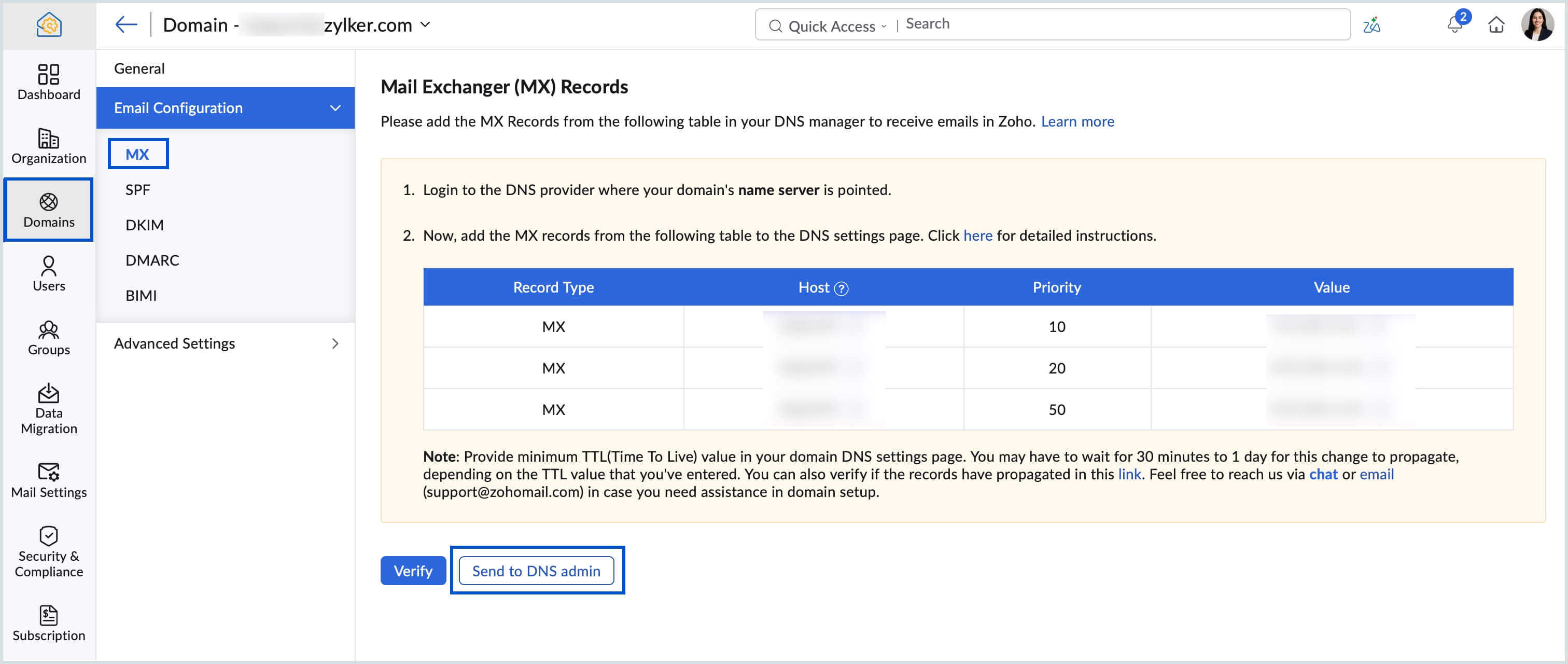
- In the Admin Console, select the Domains section from the left pane.
- All the domains in the organization will be listed.
- Select the domain for which you'd like to delegate/share the MX configuration steps.
- Go to Email Configuration, select MX.
- Click Send to DNS admin button and enter a valid email address.
- Click Send Instructions. The email will be sent to the chosen member with MX record details to complete the configuration.
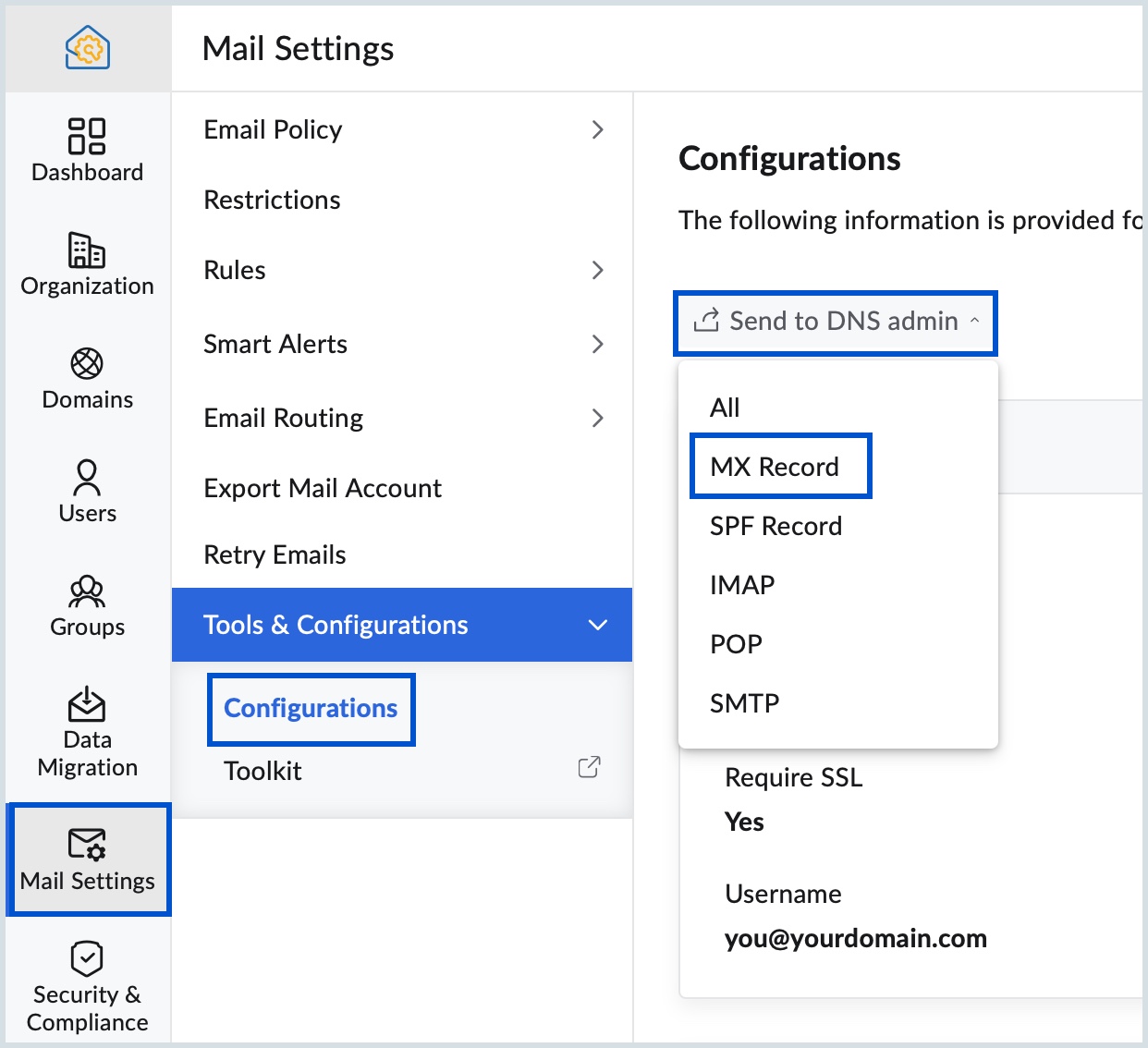
- To share the instructions at any time later, you can send it from the Tools & Configurations page. Click Send to DNS admin and select MX Record from the drop-down to share the instructions to a particular email address.
The instructions to configure MX records will be shared with the intended recipient via email. Ensure the recipient has the necessary access to update DNS records at your domain provider.
Note:
Delegating the MX configuration only shares the MX record details and configuration instructions via email. It does not grant the recipient access to your Zoho Mail organization or authorize them to make changes within your account. After the configuration is completed at the domain provider, you (the admin) must still verify the MX record in the Zoho Mail Admin Console.
Troubleshoot email delivery
How to resolve MX records conflict
If you're experiencing issues with email delivery, it may be due to conflicting MX records in your domain's DNS settings.
Even if multiple MX records are configured, emails are always delivered to the server with the lowest priority value (i.e., highest priority), as returned by your domain’s DNS. Other MX records will only be used if the primary one is offline or not accepting emails.
Additional MX records are typically used:
- For redundancy, acting as backups in case the primary server fails.
- By service administrators for managing infrastructure and configuration changes.
Recommendations
- Having MX records from multiple providers (e.g., Zoho Mail and a previous email host) can cause delivery conflicts. If other MX entries have equal or higher priority (e.g., priority 0 or 5), emails may not be delivered to Zoho Mail.
- To avoid email delivery issues, ensure that only Zoho Mail’s MX records are active in your DNS configuration, and remove any entries associated with previous or third-party providers.
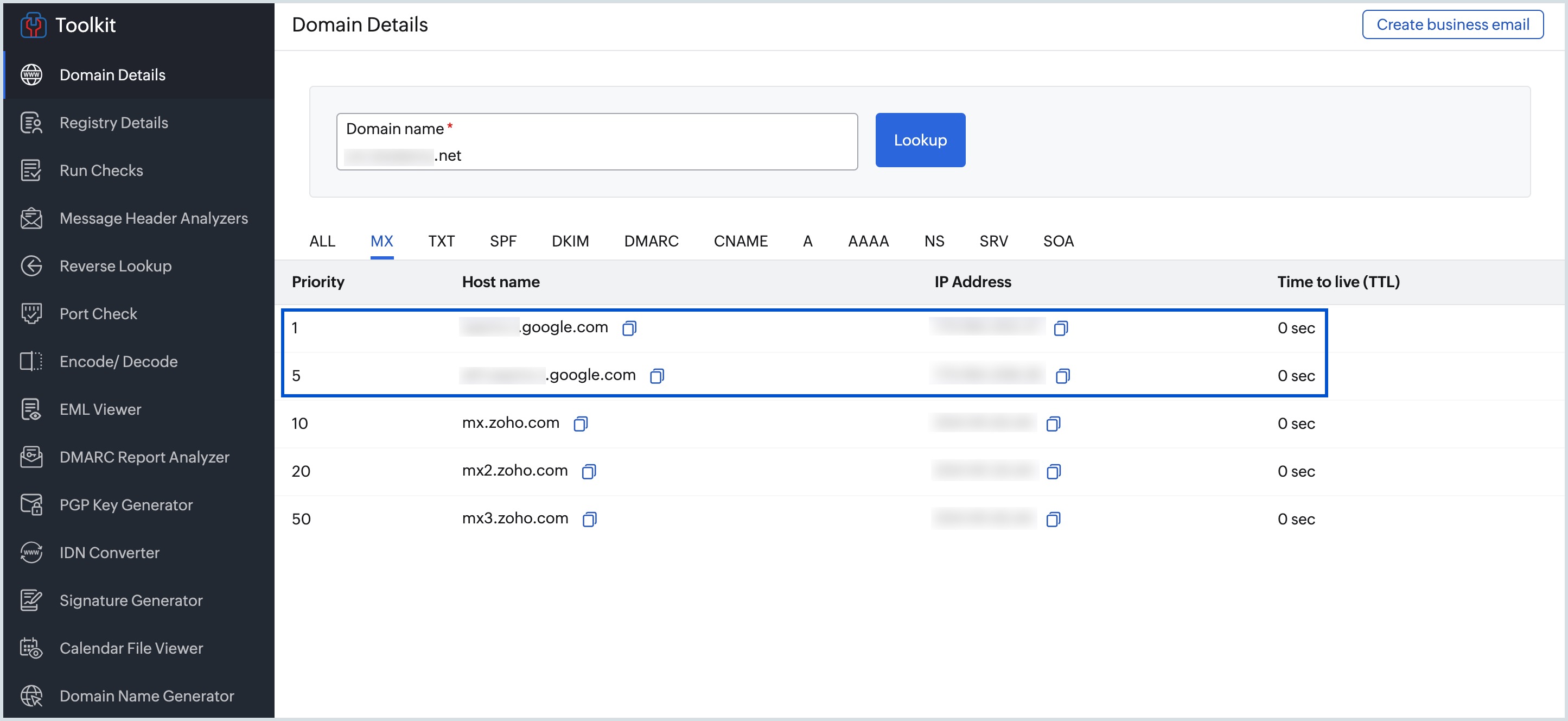
Note:
Removing conflicting MX records will ensure that emails are delivered only to Zoho Mail and not to your previous provider.
Steps to follow when you are unable to receive emails even after changing MX records
You will start receiving emails only if the MX records are correctly configured. If you have added the MX records but are still unable to receive emails, check the following:
- Perform the MX Lookup of your domain's MX records from Toolkit by Zoho Mail.
- The MX records that are returned should be as listed in the Tools & Configurations section of Admin Console. The TLD for the MX record will vary based on the DC in which your data is hosted in Zoho.
- The reference MX values are given below:
- 10 mx.zoho.com
- 20 mx2.zoho.com
- 50 mx3.zoho.com
- The reference MX values are given below:
- If there are other MX entries with lower priority (ex: 0 or 5), emails will not be delivered to Zoho Mail.
- Ensure that you have deleted all other MX records related to your previous email provider.
- Ensure that you have turned off 'Local email delivery' in the web host and DNS host settings
- If your DNS provider does not allow you to specify server priorities, ensure that mx.zoho.*** has the lowest priority value among the three MX records to avoid email delivery errors.
What to do when you are not receiving specific emails?
If you are unable to receive specific emails, check whether the email server that sends emails, does not relay to Zoho Mail, or only to your domain account. In some cases, if you have set up local email delivery settings in your previous host, the emails sent from your previous email server will be delivered internally, and will not be delivered to your Zoho Mail accounts.
When you switch from the previous email service provider, you need to update the Incoming and Outgoing Email server settings for email clients such as Outlook/ Thunderbird/ iPhone/ Android mobile devices, as per the recommended Zoho Server names and ports.
How to fix email delivery issues from website contact forms
When you use 'Contact us' forms or 'Webforms' from a website, the Submit option is typically used to send emails. These emails are triggered from your Website Hosting Provider (Web Host). In most cases, the website's domain name matches the domain name in the email address they are sent from. Ex: www.yourdomain.com/contact.html page will submit the details to contact@yourdomain.com.
In this case, the Web Host or email server which triggers an email wrongly assumes that the emails should be delivered locally because the domain name is the same. To fix this, open the WebHost settings and choose the Remote Email server option to denote that these emails should be delivered externally. You'll need to check for any Local Email Delivery configuration and switch off the WebHost's local setting. In case you need further support regarding this, contact your respective DNS provider. This will ensure that emails from webforms reach the Zoho Mail servers and are delivered to the correct email accounts.
Troubleshoot MX record addition
How to troubleshoot DNS provider - registrar conflict
When you register the domain with one provider, but point the Nameservers to another provider, then the MX Records added in your Domain Registrar is not considered valid. You might have changed the DNS Provider for hosting your website or for your previous email provider configuration or based on your choice.
The MX Records added in the provider where the Nameservers are pointed will only be effective and valid. Hence, do a 'NameServer' Lookup for your domain, to check where your domain is hosted. You may also check with your Domain Registrar or the technical contact for your domain on where the name servers are pointed to if you are not sure.
What to do to resolve longer TTL issue?
TTL (Time To Live) is the time specified in your DNS for each change in your DNS to be effective. If you have a huge TTL value (24 hrs/ 48 hrs), then the MX Records might not be provided during the verification process. It might take up to 12 - 24 hours for DNS changes to take effect, based on the TTL set. Please check the TTL value and try verifying after a while.
How to troubleshoot incorrect MX values
The way the MX needs to be added often varies with different DNS Providers. Hence it is recommended to check the help pages or instruction manuals or reach out to the support team of your DNS provider, to add the respective MX Records.
Related Pages
Domain verification | Email Routing | Configure Dual Delivery | MX Lookup | GoDaddy DNS