Date/Time
The Date/Time question type allows the respondent to select a date from the calendar as the response.
In the following example, the date/time question is used to identify the date your customers last visited your cafe.
Date/time question sample:
To add a date/time question in my survey:
-
Click Date/Time in the question types listed on the left pane. You can also drag and drop the question type to the builder. Also, you can change the question type by clicking the dropdown next to the question type in the question editor. However, the choices for change are related to the question type you have selected. For example, if you selected the date/time box question type, you can only change it to its variants available in the list. You can select an option from the dropdown.
- In the Question box, type your question.
- If you want to mark the question mandatory, select the Make this question mandatory checkbox.
- If you want to make changes to the default Error message text that displays, edit the content in the text box.
- If you want to pipe in custom variables or variables from previous questions and customize the follow-up questions, click Insert Variable right above the Question box, and select the variable you want to use from the list. Read more on Piping.
- To learn what else you can do with the question, click Advanced options. You can perform the following actions:
- Select the date format you want to use in the Format list.
- Select an operand and a date range in the Date Range section for the respondents to select a date within a specified range.
- Click
next to the calendar to choose an option based on your date preferences.
- To also include time in your answer, select the Include time checkbox.
- The autofill or prepopulate answer feature allows you to prepopulate single-variable survey responses automatically before sending them to respondents. To prepopulate answers for a known respondent, select Prepopulate answer.
-
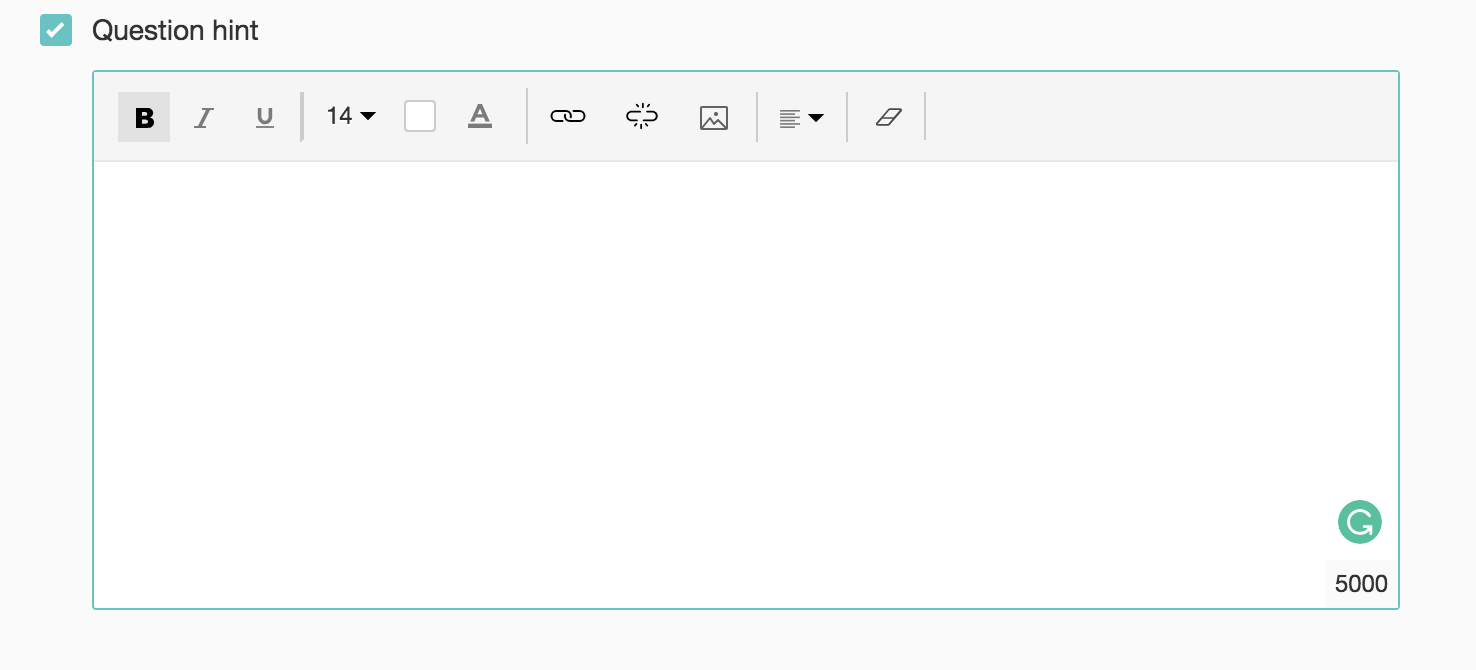
Question hint is used to add hints to your question and help your respondents get a clear idea of what your questions are all about. This feature is optional and is available only for certain types of questions.
-
Select Mark as Health Information (ePHI) in the Data Privacy section to safeguard the health information data in the healthcare surveys category. The Encrypt answer field also gets selected, by default.
-
Select Encrypt answer to add an additional layer of security to the responses for this particular question.
- Switch to the Display Logic tab to add a logic condition to the question.
- To save the changes, click Save.
- To discard the changes, click Cancel.
To add time in a date/time question:
- Click the Date/Time type question.
- Click Advanced options.
-
Select the Include time checkbox.
To limit the date range in a date/time question:
- Click the Date/Time type question.
- Click Advanced options.
-
Select an operand and the From and To dates for the respondents to select a date within a specified range.
-
Click
next to the From and To fields and select an option based on your date preferences.
To change the date format in a date/time question:
- Click the Date/Time question.
- Click Advanced options.
-
Select the date format you want to use in the Format list.
To prepopulate the question with an initial value:
- Click the Date/Time question.
- Click Advanced options.
- Select Prepopulate answer. The autofill or prepopulate answer feature allows you to prepopulate single-variable survey responses automatically before sending them to respondents. To prepopulate answers for a known respondent, select Prepopulate answer.
In addition, disable the Editable checkbox to restrict the responders from editing the pre-populated answer you have configured. - Select the Initial value in the Value from the dropdown list.
- Select a date from the calendar or click